UI tab
The UI tab (Display etc.) designs the Hapbeat device’s appearance and controls. Edit OLED layout, button assignments, LED colors, Volume, and Hold feedback together, then use Deploy to write them to the device.
It applies to Hapbeat devices (duo_wl / band_wl) and writes ui-config.json to device NVS. UI settings are independent per Duo / Band model.
At a glance
Section titled “At a glance”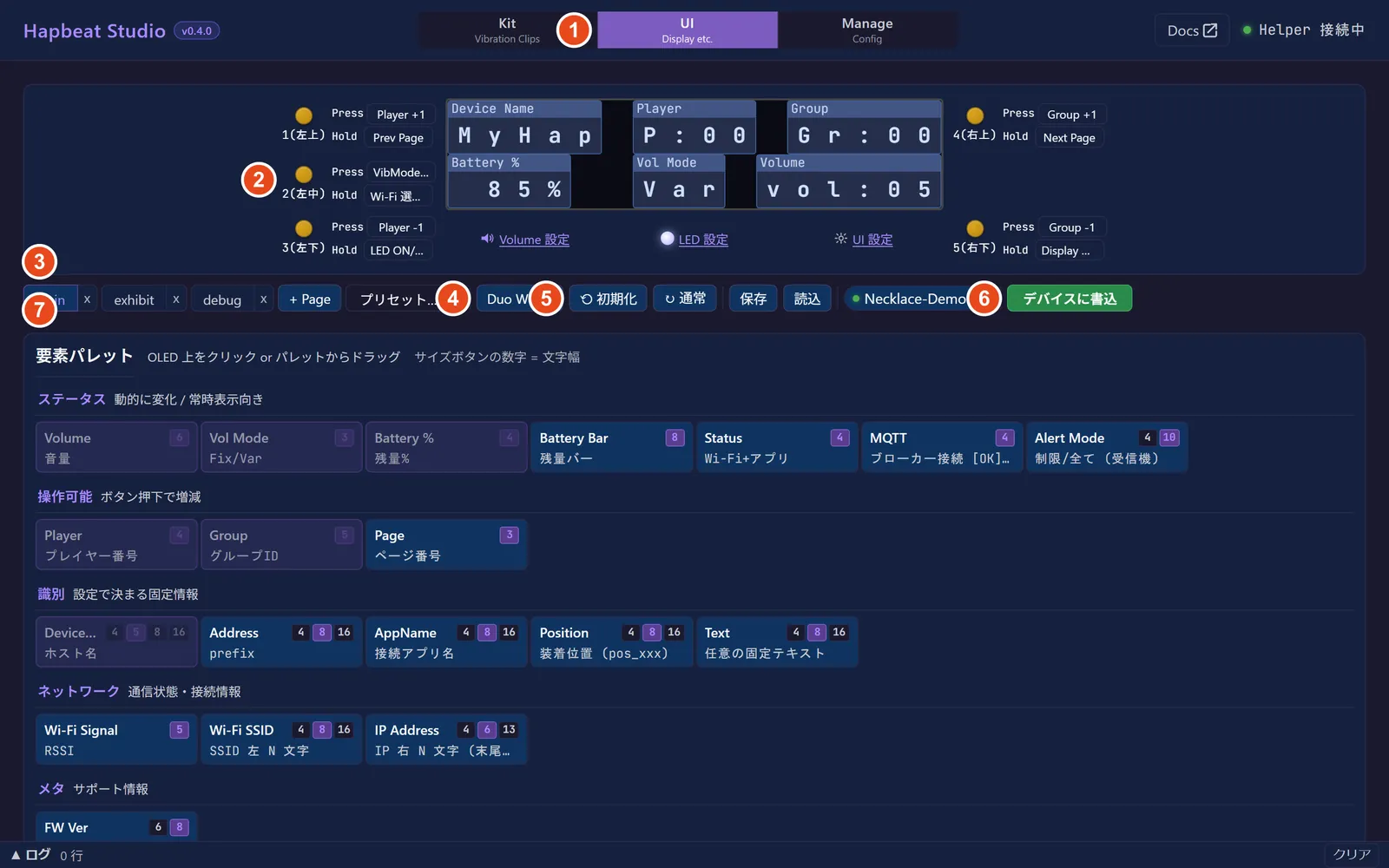
- Tabs — Kit / UI / Manage.
- OLED preview — layout simulator with left/right button Press and Hold assignments.
- Pages — page tabs,
+ Page, and presets. - Model switch — Duo WL ⇄ Band WL; each model has its own layout.
- Layout controls — reset, normal / 180° orientation, save, load.
- Deploy — writes the UI configuration to selected devices.
- Element palette — status, control, identification, network, and metadata elements.
Display Editor (OLED layout)
Section titled “Display Editor (OLED layout)”The OLED is edited as a 16-character × 2-line grid (one character is 8×16 px). Elements use character width and support font_scale 1× or 2×.
Placement
Section titled “Placement”- Select an element in the palette, then click the grid to place it.
- Drag placed elements to move them; drag resize handles to change width where supported.
- Use the delete action to remove the selected element.
- Elements cannot overlap or extend outside the grid. Snap rules keep layout within character cells.
- Save / Load exports or imports
ui-config.json; Reset returns the selected model to its default layout.
Available elements
Section titled “Available elements”| Group | Examples | Purpose |
|---|---|---|
| Status | battery, volume, Wi-Fi, app connection | Shows device state. |
| Controllable | volume level, page indicator | Provides user-operable display feedback. |
| Identification | app name, device name, address | Identifies the device and connected app. |
| Network / metadata | IP, firmware, custom text | Shows deployment and diagnostic information. |
The displayed app name is the value from the most recently connected application. It cannot show a separate app name per simultaneous connection; assign the device name or address if persistent identification is needed.
Pages and buttons
Section titled “Pages and buttons”Create and name multiple OLED pages (for example main, exhibit, debug); select a page tab to edit it. + Page adds a page and presets supply starting layouts.
Each left / right button has independent Press and Hold actions. Available actions include page navigation, volume control, playback / device controls, and configured UI actions. Use the preview to inspect assignments before deploying.
Control bar
Section titled “Control bar”The control bar switches model, page, orientation, and layout import / export. A model switch never copies layout into another model: each model keeps an independent configuration.
Deploy to a device
Section titled “Deploy to a device”Use Deploy to write the selected model’s current configuration to selected online devices through Helper. The configuration becomes ui-config.json in NVS and survives restart. A failed or offline target is reported per device.
UI settings dialog (OLED / buttons)
Section titled “UI settings dialog (OLED / buttons)”OLED brightness
Section titled “OLED brightness”Choose OLED brightness from the supported device levels. The factory default is 3 (High). Brightness is device configuration, not just preview styling.
Hold timing
Section titled “Hold timing”Configure hold trigger duration and the time before color feedback begins. Defaults are 700 ms trigger / 150 ms color-change start. Hold feedback can use a selected color, brightness, and optional OLED indicator.
LED settings dialog
Section titled “LED settings dialog”LED conditions are independently enabled and ordered: lower numeric priority wins. Configure color, brightness (optionally per-condition), blink interval (0–10 s in 0.1 s increments; 0 is steady), and smooth / immediate fade.
| Condition | Meaning | Default RGB | Blink | Fade | Priority |
|---|---|---|---|---|---|
battery_critical | battery ≤5%, device will stop soon | 128,0,0 | 0.5 s | smooth | 1 |
battery_low | battery ≤15%, charging recommended | 255,120,0 | 2 s | smooth | 2 |
wifi_disconnected | configured Wi-Fi is disconnected | 255,200,0 | 1 s | immediate | 3 |
volume_mute | volume is 0, so no haptics | 180,0,255 | steady | immediate | 4 |
app_connected | receiving CONNECT_STATUS from an app | 0,42,255 | steady | immediate | 6 |
idle_wifi | Wi-Fi connected, no app connection | 0,255,0 | steady | immediate | 7 |
Volume settings dialog
Section titled “Volume settings dialog”Configures controls such as the Band volume knob in Var mode.
| Field | Range / meaning |
|---|---|
steps | 1–64 volume steps. |
direction | ascending (higher is louder) or descending (higher is quieter). |
default_level | 0 through steps − 1; fixed to this value in Fix mode. |
Defaults and persistence
Section titled “Defaults and persistence”| Setting | Default |
|---|---|
| OLED brightness | 3 (High) |
| Hold trigger / color-change start | 700 ms / 150 ms |
| Hold color / brightness | orange #FF8800 (255,136,0) / raw 35 (about 14%) |
| Hold OLED indicator | off |
| Volume | 10 steps, ascending, fixed level 5 |
| Global LED brightness | 5 (moderate for near-face use) |
| Orientation | Duo normal / Band 180° flipped |
Editing auto-saves in localStorage (hapbeat-studio-display-v2), sessionStorage, and IndexedDB for this machine. Deploy writes the selected model to device NVS. Save / Load export or import ui-config.json; importing changes only the selected model slot.